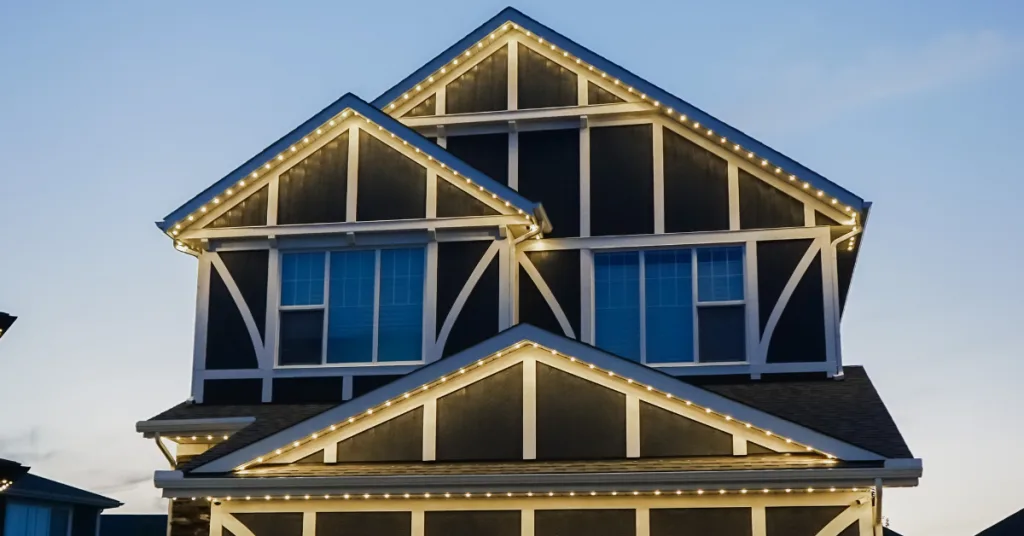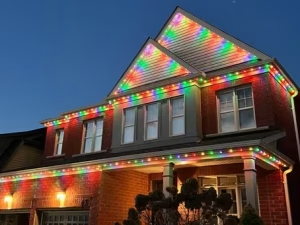

What if you could change your home's entire lighting display in about thirty seconds, from anywhere, without climbing a ladder or untangling a single cord? That is exactly what the Gemstone Lights app is built to do. Whether you want a warm white glow for a Tuesday evening or a full colour show for a backyard party, the app hands you that control instantly. This guide walks you through every major feature so you get the most out of your system from day one.
- What Is the Gemstone Lights App?
- Downloading and Setting Up the Gemstone App
- Choosing Colours and Effects with the Gemstone App
- Scheduling Your Lights for Every Occasion
- Tips for Getting the Most from Your System
- Frequently Asked Questions
What Is the Gemstone Lights App?
The Gemstone Lights app is the dedicated mobile controller for Gemstone Lights permanent LED systems. It connects your smartphone directly to the Wi-Fi-enabled controller box installed at your home, giving you real-time command over every pixel of light along your roofline, eaves, and fascia. No hub, no third-party smart-home bridge, and no subscription fee are required to run the core features.
The app is available on both iOS and Android. Once paired with your controller, it remembers your saved scenes, schedules, and colour palettes, so your preferences are always ready when you open it. This is the same platform used across all permanent outdoor lighting installs we complete, meaning the learning curve is identical whether your home has forty feet of lights or four hundred.
Think of the app as the remote control that never goes missing. Because it lives on your phone, you can adjust your lights from the couch, the driveway, or across town before you pull in for the evening. That convenience is a big part of why homeowners who invest in permanent Christmas lights end up using their system year-round rather than just during the holidays.
Downloading and Setting Up the Gemstone App
Search for “Gemstone Lights” in the Apple App Store or Google Play Store and install the free app. Open it and create an account using your email address. You will then be prompted to add a device. Have your controller's serial number ready, which is printed on a label attached to the controller box your installer mounted on your home.
Connect your phone to your home Wi-Fi network before pairing. The app walks you through a short pairing sequence: select your network, enter the password, and the controller syncs within a minute or two. Once the status light on the controller turns solid, the gemstone app is live and your lights are ready to control. If the pairing times out, move your phone closer to the controller and try again.
After pairing, the app will prompt you to name your installation. Give it something easy to identify, especially if you manage lights at more than one property. Your installer from Apex Impressions can also walk you through this process at the time of your install, which is a convenient moment to ask any setup questions before we pack up for the day.
Choosing Colours and Effects with the Gemstone App
The colour picker inside the gemstone app gives you access to over sixteen million colours. Tap the Colours icon in the bottom navigation to open the colour wheel, drag to your chosen hue, and your lights update in real time. You can also type in a specific hex code if you want to match a precise shade, which is handy for matching team colours or seasonal palettes.
Beyond solid colours, the app includes a library of dynamic effects: chasing, fading, twinkling, colour cycling, and more. Each effect has a speed slider so you can dial it from a slow, relaxed pulse to a fast, energetic chase. These effects are especially popular for holiday displays and are part of what makes soffit lighting feel so dynamic compared to static fixtures.
Saving a scene takes two taps. Once you have a colour or effect you like, press the bookmark icon and name the scene. Saved scenes appear on your home screen for one-tap recall later. We recommend saving at least three scenes right away: a warm white for everyday use, a festive multi-colour for holidays, and one seasonal option that fits the time of year.
Scheduling Your Lights for Every Occasion
The scheduling tool is where the gemstone app really earns its keep. Tap the clock icon to open the scheduler. You can set your lights to turn on at a specific time, at sunset, or at a custom offset before or after sunset. The sunset-tracking option is particularly useful because it adjusts automatically as daylight hours shift through the seasons.
You can create multiple schedules and assign different scenes to each one. For example, set a warm white scene to activate at sunset on weeknights, then schedule a brighter multi-colour display to run on Friday and Saturday evenings. Holiday-specific schedules can be built weeks in advance and toggled on or off without deleting them, so your settings are waiting for you next year.
Schedules also pair well with the brightness control slider. Running your lights at around sixty percent brightness for most of the night and dropping to thirty percent after 11 p.m. reduces energy draw and keeps things neighbourly during late hours. This kind of thoughtful programming is one reason homeowners across areas we serve, from Barrie to Mississauga, find the system so easy to live with long-term.
Tips for Getting the Most from Your System
Keep your app updated. Gemstone releases firmware and app updates periodically that add new effects and improve connectivity. Enabling automatic updates in your phone settings means you never miss an improvement. If your lights ever behave unexpectedly, a quick app update fixes the issue in most cases.
Share access with your household. The gemstone app supports multiple user accounts on a single controller, so a partner or family member can manage the lights without needing your login. Go to Settings, select Shared Access, and enter their email. This is especially practical for families who want different people to control holiday displays or outdoor entertaining setups.
Pair your lighting routine with other home exterior maintenance. Clean gutters keep water away from your controller and wiring, and our gutter cleaning service takes care of that in one visit. Similarly, a clean roofline shows off your lighting more vividly, which is why many of our clients combine lighting installs with roof cleaning for a sharp finished look. A well-maintained exterior lets your lighting system do what it was designed to do.
Ready to put the gemstone app to work on your home? At Apex Impressions, we handle the full installation of your permanent outdoor lighting system so everything is wired, configured, and ready for you to control from your phone the same day. Visit our Gemstone Lights Markham page to see service options and get in touch with our team for a free quote. We make the process straightforward from first conversation to final walkthrough.
Understanding the Main Dashboard
The dashboard is the first screen you see after logging in, and it is designed to be straightforward. At the top you will find a large on and off toggle, which turns your entire Gemstone Lights system on or off instantly. Below that, a brightness slider lets you dim or brighten the lights without changing the colour or mode you have already chosen.
Along the bottom of the screen, you will see navigation icons for Colours, Effects, Schedules, and Settings. These are the four main areas of the app, and almost everything you do will live in one of them. The Settings area is where you manage your account, rename your zones if you have multiple sections of lighting, and check for firmware updates on the controller.
Zones are especially useful if your installation covers different areas of your property, such as the front roofline, the back deck, and soffit lighting along the garage. Each zone can be set to a different colour or effect simultaneously, so you are not locked into one look for the whole house. Naming zones clearly when you first set up the app saves a lot of confusion later.
Troubleshooting Common App Issues
Even a well-designed app runs into occasional hiccups. The most common issue people report is the app showing the controller as offline when the lights are clearly working. Nine times out of ten, this means the controller lost its connection to your home Wi-Fi after a router restart or an internet outage. Open your router settings, confirm the controller is connected, and then pull to refresh in the app.
If the app itself is slow or unresponsive, close it fully, check for updates in the app store, and reopen it. An outdated app version is a frequent cause of sync delays, especially after Gemstone pushes a firmware update to the controller. Keeping both the app and the controller firmware current prevents the majority of compatibility problems.
For issues that persist after the basic steps, the Gemstone Lights support team has a live chat function built into the app under Settings. If the problem turns out to be a hardware fault rather than a software one, reach out to us directly. We handle installations across locations including Markham and the surrounding areas, and we can send a technician to inspect your controller or wiring.
Ready to get your permanent lighting system installed and start using the app yourself? Contact Apex Impressions today to get a free quote on Gemstone Lights installation. Our team handles everything from running the wiring to walking you through the app so you feel confident from day one. Visit our permanent outdoor lighting page to learn about the full range of options we offer, and reach out whenever you are ready to get started.
Frequently Asked Questions
Is the Gemstone Lights app free to download?
Yes, the app is completely free on both iOS and Android. There is no monthly subscription required to access the core features, including colour control, effects, scheduling, and scene saving. Gemstone releases ongoing updates at no charge as well.
How many colours can I choose in the gemstone app?
The app gives you access to over sixteen million colours through its colour wheel. You can also enter specific hex codes if you want to match an exact shade. Colours update on your lights in real time as you drag the picker, so there is no guessing involved.
Can I control my lights when I am away from home?
Yes, you can control your lights remotely as long as your phone has an internet connection and your home Wi-Fi is active. The controller connects through your home network, so distance from your house does not matter. Many homeowners turn their lights on from the car before they pull into the driveway.
How many schedules can I save in the app?
You can save multiple schedules and assign a different scene or colour to each one. There is no published hard limit on the number of schedules you can store. Most homeowners find that three to five schedules cover everyday use, weekends, and seasonal or holiday displays without any overlap.
What should I do if the gemstone app loses connection to my controller?
First, check that your home Wi-Fi router is online and that your phone is connected to the same network used during setup. If the connection still fails, try restarting the controller by switching its power off for ten seconds and back on. A quick app update also resolves most connectivity issues. If problems persist, contact Apex Impressions and we will help troubleshoot your system.
Can multiple family members use the app to control the same lights?
Yes, the gemstone app supports shared access so more than one person can control the same controller. Go to Settings, choose Shared Access, and add additional users by email. Each person gets their own login, and changes made by one user update the lights immediately for everyone on the system.
Does the Gemstone Lights app work with voice assistants like Alexa or Google Home?
Yes, the Gemstone Lights system is compatible with both Amazon Alexa and Google Home. After linking your Gemstone account to your preferred assistant, you can use voice commands to turn lights on and off or switch between saved scenes. Setup instructions for each assistant are available in the app under Settings.
What happens to my schedules if the power goes out?
Your schedules are stored in the app and on the controller, so they are not lost during a power outage. When power is restored, the controller reconnects to your Wi-Fi and resumes following your saved schedules automatically. You do not need to re-enter anything, though you may want to confirm the controller is back online in the app after a prolonged outage.